Hey there! So you’ve heard about autophagy and you’re curious about tracking it? That’s awesome! When I first discovered autophagy about two years ago, I was blown away by this amazing process where your body literally cleans and repairs its own cells. But here’s the thing – I had no clue when autophagy was actually happening in my body.
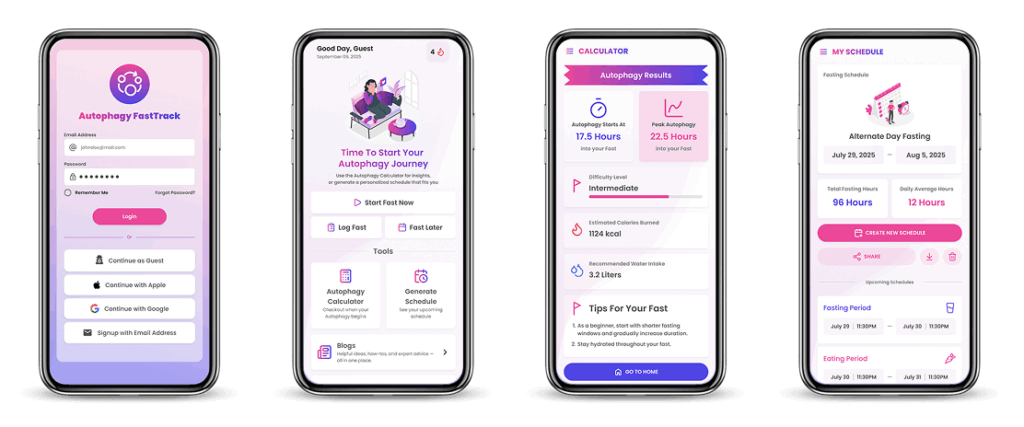
That’s when I found the Autophagy Fasting Tracker app from autophagytools.com, and let me tell you, it completely changed my fasting game. Instead of just watching a regular timer count down, I could actually see when my body was entering different healing phases. Pretty cool, right?
Let me walk you through exactly how to use this autophagy tracker app to get the most out of your fasting and really maximize those cellular repair benefits.
First, What Exactly IS Autophagy?
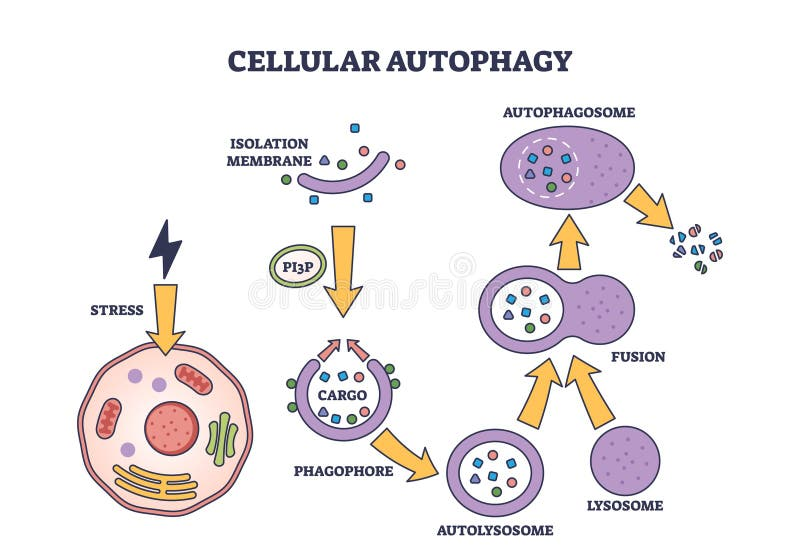
Before we dive into the app tutorial, let me quickly explain what autophagy is in simple terms. Think of autophagy as your body’s natural cleaning crew. When you fast for long enough, your cells start breaking down old, damaged parts and recycling them to build new, healthy components.
My friend Sarah puts it perfectly: “It’s like Marie Kondo for your cells – they get rid of what doesn’t work anymore and keep what’s useful!”
Why autophagy is amazing:
- Helps your cells repair and renew themselves
- May slow down aging at the cellular level
- Supports brain health and mental clarity
- Helps your immune system work better
- May protect against various diseases
The cool thing is, autophagy doesn’t just start the moment you stop eating. It’s a gradual process that typically begins around 16-20 hours into a fast and gets stronger the longer you go.
Getting Started with the Autophagy Tracker App
The Autophagy Fasting Tracker is available on both Google Play and the App Store, and it’s the world’s first app specifically designed to track autophagy phases during fasting. Here’s how I set it up and started using it:
Step 1: Download and Set Up Your Profile
When you first open the app, it’ll ask you some basic questions about your age, weight, activity level, and fasting experience. Don’t worry – this isn’t just random questions. The app uses this info to personalize your autophagy timeline.
My setup experience: I was surprised by how detailed the questions were. The app asked about my typical diet, exercise habits, and even my stress levels. Later I realized this helps calculate when autophagy is most likely to start for MY specific body.
Step 2: Choose Your Fasting Schedule
The app offers several fasting options, from beginner-friendly 12:12 to more advanced 20:4 and even 24-hour fasts. What I love is that it doesn’t just throw you into the deep end – it actually suggests a starting point based on your experience level.
Available fasting schedules:
- 12:12 (great for beginners)
- 14:10 (slight step up)
- 16:8 (most popular)
- 18:6 (more advanced)
- 20:4 (experienced fasters)
- 24+ hours (for serious autophagy seekers)
Tom’s story: My neighbor Tom started with 12:12 even though he wanted to jump straight to 16:8. “The app basically told me to slow down,” he laughed. “But it was right – starting smaller helped me build the habit without feeling miserable.”

Step 3: Start Your Fast and Watch the Magic Happen
This is where the Autophagy Tracker really shines. Once you start your fast, the app doesn’t just show you a basic countdown timer. Instead, it displays a beautiful timeline showing exactly what’s happening in your body at each stage.
The four key phases the app tracks:
Glucose Burn (0-12 hours): Your body is using up the glucose from your last meal. The app shows you’re in the “fed state” where your body is still processing food.
Ketosis Start (12-16 hours): Your body starts switching to burning fat for fuel. This is when ketones begin to form. The app marks this transition clearly.
Autophagy Active (16-24 hours): This is the golden zone! The app highlights when cellular cleanup begins. You’ll see visual markers like “Cell Repair Begins.”
Deep Autophagy (24+ hours): For longer fasts, the app shows when autophagy really ramps up. This is marked as “Deep Healing Mode.”
My first experience: Watching the app during my first 18-hour fast was so motivating. Around hour 16, when I was getting really hungry, the app showed “Cell Repair Begins” and suddenly I felt like I was accomplishing something important, not just skipping meals.
How to Maximize Your Autophagy Results Using the App
Now that you know the basics, let me share the strategies I’ve learned to really maximize my autophagy benefits using this tracker:
Strategy 1: Use the Personalized Timeline Feature
The app creates a custom timeline based on your personal data. This isn’t just a generic “autophagy starts at 16 hours” – it’s calculated specifically for YOUR body based on your weight, activity level, and metabolic factors.
Lisa’s discovery: My coworker Lisa was shocked when her personalized timeline showed autophagy starting at 18 hours instead of 16. “I was ending my fasts too early,” she realized. “The app helped me understand that my body needed a little more time.”
Strategy 2: Track Your Hydration Alongside Autophagy
The app includes a hydration tracker, and this is huge for maximizing autophagy. When you’re dehydrated, your body doesn’t function as well, which can slow down the cellular cleanup process.
My hydration strategy:
- I use the app’s water intake goals (usually 8-10 glasses during a fast)
- The app sends gentle reminders to drink water
- I can log different types of drinks (water, herbal tea, black coffee)
Carlos’s tip: My friend Carlos discovered that drinking enough water made his fasts feel way easier. “The app kept reminding me to hydrate, and I noticed I had more energy and less headaches when I followed its suggestions.”
Strategy 3: Monitor Your Progress Over Time
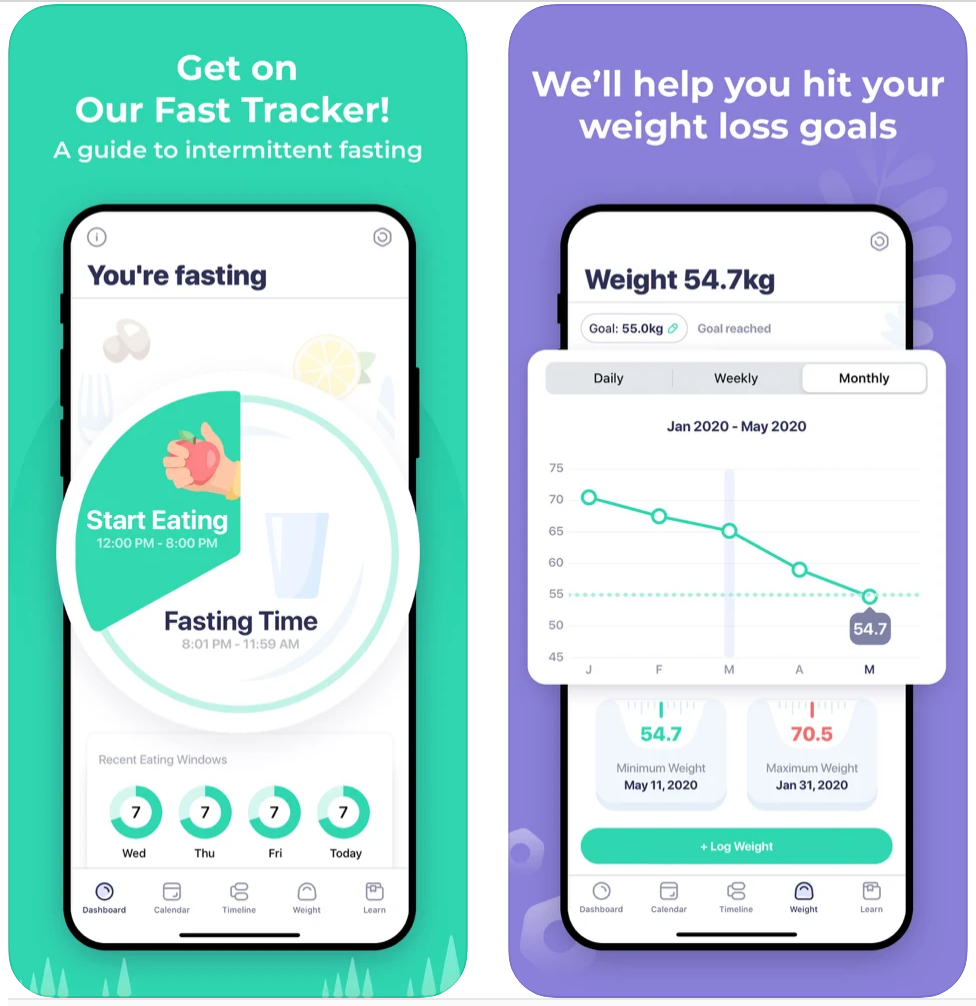
One of the coolest features is the progress tracking. The app records your fasting hours, autophagy activations, and even lets you note how you feel during different phases.
What I track:
- How many hours I fasted
- How many times I reached autophagy this week
- My energy levels during different phases
- Any symptoms or improvements I notice
Sarah’s success story: My friend Sarah used the tracking feature to realize she felt most energetic during the autophagy phase. “I started scheduling my important work meetings during hours 16-20 of my fast because that’s when I felt mentally sharpest.”
Strategy 4: Use the Educational Content
The app isn’t just a timer – it’s packed with science-based information about what’s happening in your body. I make it a point to read one article per week to understand the process better.
Topics the app covers:
- When autophagy peaks in your body
- How to enhance autophagy through lifestyle choices
- What to eat when breaking your fast
- Common mistakes that can interrupt autophagy
Advanced Tips for Maximizing Autophagy
Once you get comfortable with the basics, here are some advanced strategies I’ve learned:
Tip 1: Time Your Exercise for Maximum Benefit
The app helped me figure out that light exercise during the autophagy phase can actually enhance the cellular cleanup process. Now I schedule my walks for hours 16-20 of my fast.
Mike’s approach: My brother Mike does bodyweight exercises right before breaking his fast. “The app showed me I was in deep autophagy, so I figured some movement might boost the benefits,” he says.
Tip 2: Experiment with Different Fasting Windows
The app makes it easy to try different schedules and see how they affect your autophagy timeline. I started with 16:8 but now alternate between 18:6 and occasional 24-hour fasts.
How to experiment safely:
- Try a new schedule for at least a week before judging results
- Pay attention to how you feel during different phases
- Use the app’s notes feature to track what works best
Tip 3: Break Your Fast Strategically
The app gives suggestions for when and how to break your fast to maintain the benefits you’ve gained. This was game-changing for me!
Smart fast-breaking tips from the app:
- Don’t immediately eat a huge meal (can stress your digestive system)
- Start with something easy to digest like bone broth or a small salad
- Avoid sugary foods that can cause blood sugar spikes
- Give your body 20-30 minutes between small portions
Real Success Stories from App Users
Let me share what people I know have achieved using the Autophagy Tracker:
Jenny (Lost 18 pounds in 3 months): “The app helped me understand that I wasn’t reaching autophagy with my 14-hour fasts. Once I extended to 18 hours using the app’s guidance, everything changed. I had more energy and the weight started coming off.”
Tom (Improved mental clarity): “I’m a programmer and I need to focus for long periods. The app showed me that my brain works best during the autophagy phase, so I schedule my most complex coding during hours 16-22 of my fast.”
Carlos (Better sleep and energy): “I used to feel tired all the time. The app helped me realize I needed longer fasts to really trigger autophagy. Now I do 20-hour fasts twice a week and feel amazing.”
Lisa (Reduced inflammation): “I have arthritis, and my doctor suggested trying fasting for the anti-inflammatory benefits. The app helped me track when autophagy was happening, and after two months, my joint pain significantly improved.”
Common Mistakes to Avoid (The App Helps Prevent These!)
Based on my experience and what I’ve learned from the app’s educational content, here are the biggest mistakes people make:
Mistake 1: Not Fasting Long Enough
Many people think 12-14 hours is enough for autophagy, but the science shows you usually need at least 16-18 hours. The app’s personalized timeline helps you understand when autophagy actually starts for YOUR body.
Mistake 2: Breaking the Fast Too Early
I used to quit my fasts right when they were getting hard, usually around hour 14. The app showed me I was stopping right before autophagy began! Now when I get hungry, I check the app to see how close I am to the “Cell Repair Begins” phase.
Mistake 3: Not Staying Hydrated
The app’s hydration tracker was eye-opening. I thought I was drinking enough water, but I was actually under-hydrated most of the time, which probably reduced my autophagy benefits.
Mistake 4: Eating the Wrong Foods After Fasting
The app taught me that what you eat when breaking your fast is crucial. Eating junk food can undo some of the cellular benefits you just worked so hard to achieve.
Troubleshooting Common Issues
Here are solutions to problems I’ve encountered while using the app:
Problem: “I’m not reaching autophagy as quickly as expected”
Solution: The app factors in your diet and lifestyle. If you eat a lot of carbs or have a slower metabolism, it might take longer. Be patient and trust your personalized timeline.
Problem: “I feel weak during the autophagy phase”
Solution: Make sure you’re following the app’s hydration guidelines. Also, light movement like walking can actually help with energy levels.
Problem: “I keep breaking my fast too early”
Solution: Use the app’s notification features to remind you when you’re approaching autophagy. Seeing “Cell Repair Begins in 2 hours” helps me push through difficult moments.
The Science Behind the App’s Calculations
What makes this app special is that it’s based on real scientific research about when autophagy occurs in humans. The timeline isn’t just guesswork – it’s calculated using factors like:
- Your metabolic rate (influenced by age, weight, activity level)
- Your typical diet (affects how quickly you deplete glucose stores)
- Your fasting experience (beginners often take longer to reach autophagy)
- Individual variations in cellular processes
Dr. research insight: Studies show autophagy markers increase significantly after 18-24 hours of fasting in humans, but individual variation is huge. That’s why personalized tracking is so valuable.
Building Your Autophagy Routine
Here’s the weekly routine I’ve developed using the app:
Monday & Thursday: 20-hour fasts (to really maximize autophagy)
Tuesday, Wednesday, Friday: 16-hour fasts (maintenance level)
Weekend: 14-hour fasts or normal eating (flexibility for social events)
The app helps me track this pattern and shows how many hours of autophagy I’m getting each week. My goal is at least 30 hours of autophagy time per week.
Advanced Features to Explore
As you get more experienced with the app, here are some advanced features to try:
Custom Fasting Plans: Create your own fasting schedules based on your lifestyle and goals.
Progress Analytics: View detailed charts of your fasting patterns and autophagy activation over time.
Integration Options: The app works with popular health apps to give you a complete picture of your wellness.
Community Features: Connect with other users who are on similar autophagy journeys.
The Bottom Line
Using an autophagy tracker app completely changed how I think about fasting. Instead of just “not eating,” I now see fasting as actively supporting my body’s natural repair processes. The Autophagy Fasting Tracker makes this invisible process visible and helps me maximize the benefits.
My top 5 tips for success:
- Start with your personalized timeline – don’t assume generic advice applies to you
- Track hydration alongside fasting – it’s crucial for optimal autophagy
- Pay attention to how you feel – use the app’s notes feature to track patterns
- Be patient with the process – autophagy is gradual, not instant
- Use the educational content – understanding the science keeps me motivated
Final thoughts: The best autophagy tracker app is one you’ll actually use consistently. This app makes the complex science of cellular repair accessible and actionable. Whether you’re a beginner or experienced faster, having real-time insight into when autophagy is happening can help you maximize your results and stay motivated on your health journey.
Ready to optimize your fasting for maximum autophagy benefits? Download the Autophagy Fasting Tracker from autophagytools.com and start tracking your cellular repair journey today! 🧬
